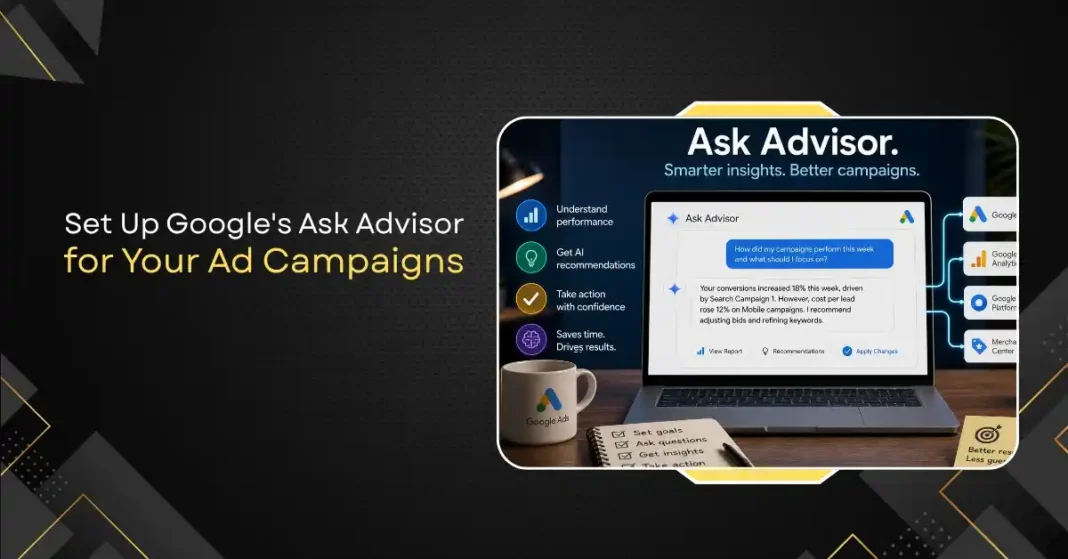
Google announced Ask Advisor at Google Marketing Live 2026 on May 20, and if you manage Google Ads campaigns, it is worth understanding what it actually does and how to get started with it.
The short version: Ask Advisor is a single AI agent that connects Google Ads, Google Analytics, Google Marketing Platform, and Merchant Center into one conversational interface. Instead of switching between four different tools to answer one question about your campaign performance, you ask Ask Advisor and it draws from all of them.
This guide explains what Ask Advisor is, how to access it, and how to use it effectively as a beginner.
What Ask Advisor Is and Is Not
Before getting into setup, it is worth being clear about what Ask Advisor actually does, because the framing at Google Marketing Live made it sound more autonomous than it currently is.
Ask Advisor is a Gemini-powered conversational assistant that helps you understand and manage your campaigns. It can pull performance data, explain what is driving results, recommend actions, and in some cases execute those actions on your behalf. It retains memory across your sessions, so if you tell it your campaign goals at the start of the week, it still knows them when you ask a follow-up question three days later.
What it is not: a system that runs your campaigns without oversight. Ask Advisor makes recommendations and can take actions when you confirm them, but you remain in control of budget decisions and campaign structure changes. Think of it as a very capable assistant who has read all your campaign data and is available to answer questions and draft action plans, but still waits for your approval before doing anything consequential.
Ask Advisor absorbs the functionality of what were previously three separate tools: Ads Advisor (which reached all English-language accounts in December 2025), Analytics Advisor, and the Merchant Center agent currently in development. If you were already using Ads Advisor, Ask Advisor is its direct successor.
How to Access Ask Advisor
Ask Advisor is currently in beta for English-language Google Ads accounts globally. Not every account has it yet, but the rollout is active.
To check if it is available on your account:
Sign into your Google Ads account. Look for the sparkle or Gemini icon in the bottom right corner of the interface or in the left navigation panel. If you see an option labeled “Ask Advisor” or “Advisor,” your account has access.
Alternatively, go to your account’s Help section and search for “Ask Advisor.” If your account is enrolled in the beta, you will see the option to open it from the help panel.
If you do not see it yet, Google is rolling it out progressively. It is worth checking back weekly. Agency accounts and accounts with higher monthly spend have generally received access earlier in the rollout.
First Time Setup: Giving Ask Advisor Context
When you first open Ask Advisor, it has access to your account data but no context about your goals. The first conversation you have with it should be about establishing that context. This is what makes the memory layer useful.
Start by telling it what you are trying to accomplish in plain language. You do not need to use technical Google Ads terminology. Something like: “I run a home services company targeting customers in the greater Chicago area. My main goal for the next quarter is to increase lead volume while keeping my cost per lead under $40. I have four active campaigns, two for Google Search and two for Local Services Ads.”
Ask Advisor will confirm that it has understood your goals and may ask clarifying questions. For example, it might ask whether you have separate lead-volume targets for different service types (plumbing versus HVAC, for instance) or whether the $40 cost-per-lead target applies across all campaigns or only specific ones.
Answer these questions as specifically as you can. The more precise the context you give it, the more relevant its recommendations will be.
What You Can Ask It During Day-to-Day Campaign Management
Once the context is set up, here are the types of questions Ask Advisor handles well for beginners.
Performance summaries across platforms. Instead of pulling separate reports from Google Ads and Analytics, ask: “How did my campaigns perform this week compared to last week, and are there any obvious reasons for the differences?” Ask Advisor will pull data from both platforms and give you a synthesized view with its interpretation of the drivers.
Budget pacing. “Am I on track to spend my monthly budget at the current pace, or should I adjust?” This is a calculation that used to require manual work in multiple dashboards. Ask Advisor answers it in seconds.
Explaining unfamiliar metrics. If you see a metric in your Google Ads interface that you do not understand, ask Ask Advisor to explain it in plain terms and tell you whether your current numbers for that metric are typical for your industry and campaign type.
Identifying underperforming campaigns or ad groups. “Which of my campaigns or ad groups are performing below my cost-per-lead target, and what might be causing it?” This type of diagnostic question is where Ask Advisor’s cross-platform access adds the most value for someone who does not have years of Google Ads experience.
Keyword and audience recommendations. “Based on my current performance data, are there keywords I should add or remove? Are there audience segments that are converting well that I should increase bids for?” These recommendations come with context about why Ask Advisor is making them, not just a list of changes.
Draft action plans. “I want to run a promotion for the next two weeks at 20 percent off. How should I adjust my campaigns to capture more volume during this period without overspending?” Ask Advisor can draft a plan for this and walk you through each step.
How to Use the Memory Layer Effectively
The shared memory layer is what makes Ask Advisor more useful than a one-off query tool. Here is how to get the most out of it.
At the start of each week or each new campaign period, open Ask Advisor and give it a brief update on any changes to your goals or constraints. “This week we launched a new landing page for our HVAC service. I want to know if conversion rates improve on that campaign by Friday.” Ask Advisor will track this and be able to give you a relevant update when you ask.
When you make a significant change to your campaigns, tell Ask Advisor. “I increased the budget on Campaign B by 30 percent this morning.” This context helps it interpret the performance data accurately. Without it, Ask Advisor might flag a budget increase as unusual activity rather than understanding it as an intentional change.
Ask for weekly recaps. “Give me a summary of what happened this week across my campaigns, what decisions we made, and what I should pay attention to next week.” This turns Ask Advisor into an ongoing campaign log that builds over time.
What Ask Advisor Can Actually Execute
Ask Advisor has what Google calls “agentic safety features,” which means it asks for confirmation before making any changes to your account. Here is what it can do once you approve:
Adjust campaign budgets within the limits you set. Pause underperforming ad groups or campaigns. Suggest and apply keyword bid adjustments. Add or remove keywords from ad groups. Update ad scheduling settings.
What it cannot do without more advanced configuration: create new campaigns from scratch, add new creative assets, or make structural changes that involve building new elements rather than adjusting existing ones.
For beginners, this is actually a useful constraint. Having Ask Advisor make recommendations and then reviewing them before approval is a good way to learn why certain changes improve performance, rather than just letting automation run without understanding what it is doing.
Beginner Mistakes to Avoid
Giving it vague goals. “I want better results” does not give Ask Advisor anything to optimize toward. “I want to keep cost per lead under $40 while growing lead volume by 20 percent this quarter” gives it a real target.
Asking it to do too many things at once. Ask Advisor handles focused, specific questions better than broad open-ended ones. Instead of “fix my campaigns,” ask “why is my conversion rate lower on mobile than desktop for Campaign A?”
Approving every recommendation without reading them. Ask Advisor is a tool, not an infallible expert. Its recommendations are based on the data it has access to, which does not include everything you know about your business. Read each recommendation before approving it and apply your own judgment about whether the suggested change fits your situation.
Ignoring the cross-platform insights. The biggest advantage Ask Advisor has over manual campaign management is its ability to connect data from Google Ads and Analytics simultaneously. The most valuable questions to ask involve both: “I saw a spike in clicks this week but conversions stayed flat. What does my Analytics data say about what happened to those visitors after they clicked?”
Setting Realistic Expectations
Ask Advisor is genuinely useful for saving time on reporting and diagnostics. It is most valuable for people managing campaigns without a dedicated paid search specialist, for small business owners who need to make sense of their Google Ads data without spending hours in the interface, and for junior marketing team members who need guidance on what the numbers mean.
It is less useful as a replacement for strategic campaign thinking. Ask Advisor can tell you that your cost per lead is above target and that Mobile campaigns are contributing disproportionately to that. It cannot tell you that your landing page headline is off-brand, that your seasonal offer is not competitive, or that you should be advertising on a different platform entirely. That judgment still requires a human.
Used correctly, it should save a small business owner or beginning marketer two to four hours per week on reporting and routine campaign management. That is time that can go toward the parts of marketing that AI genuinely cannot do.