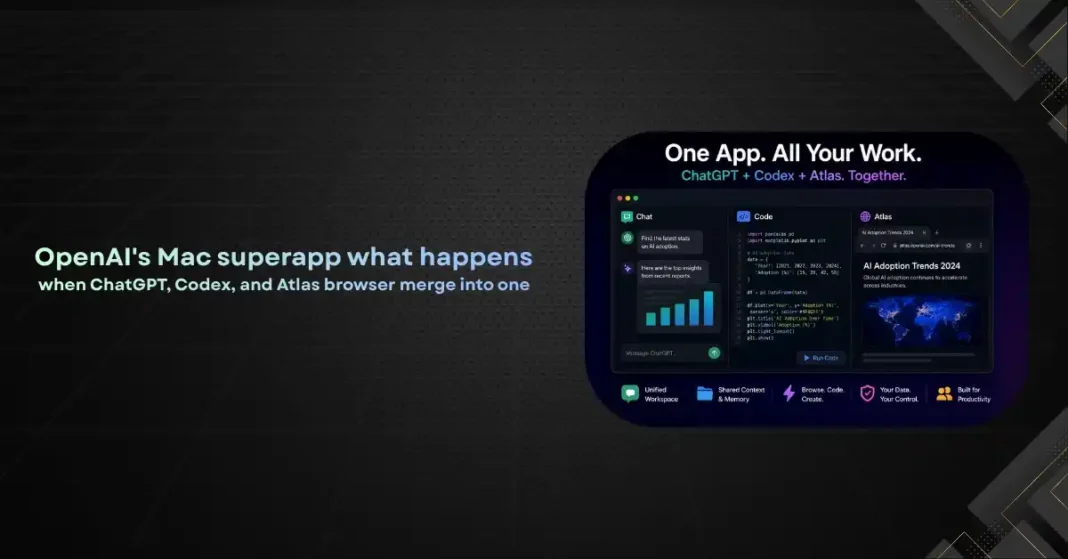
For most of the last two years, OpenAI has shipped its Mac tools as separate products. The ChatGPT desktop app does conversation. Codex handles coding. Atlas is the browser. Each has its own UI, its own update cycle, and its own quirks. That’s changing. OpenAI is rolling these tools into a single Mac application that internal documentation refers to as a ‘work surface’, and the rest of us are calling a superapp.
If you’ve ever switched between ChatGPT, a code editor, and a browser tab during the same task, you already know why this matters. The mental cost of context switching is real. Having a single application that can hold the conversation, write the code, run the browser, and tie them together with a shared memory and shared context is a different way of working. It’s also the closest thing to what Apple should arguably be building itself.
Here’s what the OpenAI Mac superapp actually does, how the three components fit together, what it means for productivity on a Mac, and where it leaves Apple.
The Three Pieces Coming Together
ChatGPT on the Mac is the conversational interface. You ask a question, get an answer, ask follow-ups, and so on. It also handles voice input, file uploads, and image generation. For most users, this has been the entry point to OpenAI’s tools.
Codex is the coding-focused environment. It runs locally on your Mac, has access to your filesystem, and can write, edit, and execute code on your behalf. The Codex CLI launched in 2024 and the desktop integration has been growing since. It’s now powerful enough to handle multi-file refactors and full repository operations without much hand-holding.
Atlas is OpenAI’s browser. It’s a Chromium fork with deep AI integration. The model can read what’s on the page, take actions in the browser, fill out forms, and summarise content. Atlas has been growing fast since its release because it bridges the gap between AI assistance and the rest of the web.
Individually, each of these is useful. Together, they cover almost everything you do on a Mac, from communication to coding to browsing. The superapp is what happens when they share a single window, a single session, and a single memory of what you’re working on.
How the Superapp Works in Practice
The interface is built around a unified workspace. You start with a conversation, like you would in ChatGPT today. But when the conversation needs to do something concrete, like read a webpage, write a file, or run a command, the right tool surfaces inside the same window.
Ask the assistant to research a topic, and a browser pane opens on the right with the relevant pages. Ask it to write a Python script based on what you just discussed, and a code editor pane opens with the script ready to run. Ask it to send an email summarising the findings, and a draft is generated in your email client of choice.
The key word here is ‘pane’. The superapp uses a split-pane interface where the conversation stays anchored and tools appear and disappear as needed. You can drag panes around, pin them, or collapse them. The model treats everything in the workspace as part of the same context, so it remembers what page you were just looking at when it writes the code or generates the email.
Memory is the glue. The superapp remembers your active projects, the files you’ve been working on, the topics you’ve been researching, and the preferences you’ve expressed. This is different from ChatGPT’s existing memory feature, which is more conservative and user-controlled. The superapp’s memory is closer to a personal knowledge graph that gets richer the more you use it.
What This Changes for Coders
For software developers, the superapp is the most significant productivity shift since modern IDEs. The classic workflow is: open browser to read docs, copy code from Stack Overflow, paste into IDE, run code, switch back to browser to debug. The superapp collapses all of that into a single workspace.
Codex inside the superapp can read your documentation tabs in Atlas, pull code from your own repositories on disk, run tests, and explain failures, all without you switching windows. The AI has full context across the conversation, the browser, and your local files, which means it can give answers that account for your specific codebase rather than generic advice.
This also changes how teams work. The superapp can be configured to read shared repositories, internal docs, and project context, so a team member joining a new project can ask the assistant for an orientation that’s specific to that codebase. Onboarding times for engineers may shrink significantly in teams that adopt this pattern.
For solo developers and indie hackers, the cost-benefit is even better. You get a coding co-pilot, a research assistant, and a browser automation tool in one product. The subscription replaces several other tools you might otherwise pay for.
What This Means for Knowledge Workers
Coders aren’t the only ones who benefit. Knowledge workers, marketers, analysts, and content creators all do similar work, just in different tools. The superapp generalises the same workflow to non-coding tasks.
If you’re writing a market analysis, the conversation can research recent news in Atlas, pull data from your local spreadsheets, draft sections in a side pane, and refine based on feedback, all in one session. The model holds the entire workflow in context, so the final draft reflects everything you’ve discussed.
For agencies and SMEs, this changes how proposals, reports, and competitive analyses get done. The traditional approach involves switching between research tabs, draft documents, and reference materials. The superapp collapses that into a continuous conversation with the assistant, where each step builds on the last.
There is a risk here too. The more work happens in a single AI-managed workspace, the harder it is to audit how decisions were made. For regulated industries or anything involving customer data, the superapp’s memory and cross-tool access need careful configuration. OpenAI offers enterprise controls for this, but the defaults assume a single user with full trust in the assistant.
Where Apple Stands
Apple Intelligence is Apple’s attempt to bring AI to the Mac and the rest of the ecosystem, but it operates differently. Apple’s approach is to embed AI features inside existing apps, like Mail, Notes, and Pages, rather than build a new application. The reasoning is partly about user control and partly about privacy, with Apple running more processing on-device.
The problem with Apple’s approach is that it doesn’t solve the workflow problem. You still have to switch between Mail, Notes, Safari, and Xcode to get work done. AI features inside each app help, but they don’t connect the dots across apps the way OpenAI’s superapp does.
Apple has hinted at deeper system-level AI in future macOS releases, possibly powered by a combination of its own models, Google Gemini, and Claude. Whether Apple can build a workflow-spanning AI without giving up its privacy positioning is one of the big open questions in 2026.
For now, Apple’s strength is integration with Apple’s own services and hardware. iCloud, Photos, Messages, and Continuity features tie Macs to iPhones and iPads in ways no third-party superapp can match. The OpenAI Mac app wins on workflow but loses on ecosystem depth.
Privacy and Trust Implications
A single application that reads your files, your browser tabs, your code, and your conversations is a lot of trust to grant. OpenAI’s superapp asks for that trust upfront and gives you controls to limit access.
On-device processing handles some of the lighter tasks, but most of the heavy lifting happens in the cloud. Your code is sent to OpenAI’s servers when you ask Codex to analyse it. Your browser tabs are sent when you ask Atlas to summarise. Your conversation history is stored in OpenAI’s systems unless you explicitly delete it.
Enterprise users get more controls, including data residency, audit logs, and the ability to disable memory entirely. Individual users have lighter controls, but you can still delete history, opt out of training, and turn off memory.
The big trade-off is that giving the assistant less context makes it less useful. The whole point of the superapp is that the model knows what you’re working on. A model with no memory and limited file access reverts to being a generic chatbot. For most users, the benefit of context outweighs the privacy cost, but it’s worth thinking carefully about which use cases you keep inside the superapp and which you don’t.
Pricing and Availability
OpenAI has not announced final pricing for the merged Mac application, but the expected structure is that ChatGPT Plus subscribers get full access to the superapp as part of their existing subscription. Pro users would get higher usage limits, longer context, and more agentic actions per day.
Free users will get a limited version. Likely with fewer tool integrations, no memory, and rate-limited model access. This is consistent with how OpenAI has handled feature rollouts so far.
Enterprise pricing is more complex. Teams plans, currently around $25 per user per month, would include the superapp with admin controls. Enterprise plans add custom data handling, SSO, and dedicated support.
The Mac app is launching first, with a Windows version expected later in 2026. There are no current plans for a Linux version, though the underlying tools work on Linux through the command line.
Frequently Asked Questions
Do I have to use all three tools or can I stick with just ChatGPT?
You can use only the conversational interface if that’s all you need. The browser and code panes only activate when you ask for tasks that require them. The integration is designed to be invisible when you don’t need it.
Will the superapp replace my code editor?
For some users, yes. For others, the Codex pane is an addition to an existing editor like VS Code or Cursor. Many developers will keep both, using the superapp for AI-driven tasks and their main editor for traditional coding sessions.
Is the Atlas browser inside the superapp the same as the standalone Atlas?
Yes. The browser pane is the same Atlas engine, just embedded in the superapp interface. You can still run Atlas as a standalone application for general browsing, but inside the superapp it’s purpose-built for AI-assisted research.
How does this work with my existing ChatGPT conversations?
Your existing conversations and memory carry over. The superapp inherits everything from your ChatGPT account, so picking up where you left off works the same as it does today.
Can I use the superapp offline?
Most features require an internet connection. Some local file operations and limited on-device features work offline, but the model itself runs in the cloud. Expect to be online for most workflows.
Is the data I work with stored by OpenAI?
By default, yes. Your conversations, files you upload, and tool outputs are stored on OpenAI’s systems. You can opt out of training data usage, delete history, and turn off memory. Enterprise plans add stronger data handling controls.
Final Thoughts
The OpenAI Mac superapp is the most ambitious AI product on the desktop today. By merging chat, code, and browser into a single workspace with shared context, it changes what’s possible without switching windows. For coders, knowledge workers, and anyone whose work involves moving between research, drafting, and execution, the productivity gains are real.
Apple has a problem here. The macOS App Store assumption is that apps are discrete, single-purpose tools. The superapp breaks that model entirely. Apple’s response, when it comes, will define how the next decade of macOS works, and whether the AI workspace is something Apple builds or something it allows others to build on top of its platform.
For now, the Mac superapp is a glimpse of how desktop work might feel in 2027 and beyond. Less switching. More conversation. The OS recedes into the background. The model is the thing you’re talking to. Whether that’s a future you want depends on your tolerance for AI in the middle of everything, but for those who want it, the OpenAI Mac app is already the leading example of what that future looks like.