Most AI-generated code is garbage on the first try. You write a prompt, get something that looks right, paste it into your project, and then spend an hour debugging why it broke everything. Sound familiar?
The problem isn’t AI. It’s that AI tools have been flying blind. They don’t know what your UI looks like, what your database structure is, or what tools you’re already using. They guess. And guessing wastes everyone’s time.
Two tools are changing that: Google Stitch and MCP (Model Context Protocol). Together, they give AI a proper starting point — a real design to work from and a real connection to your tools. This Google Stitch MCP tutorial walks through both, how they work, and how to use them to build something real.
What Is Google Stitch?
Google Stitch is a free AI-powered UI design tool built by Google Labs. You describe an app in plain English — or upload a sketch — and Stitch generates a high-fidelity UI layout with working frontend code.
It launched at Google I/O 2025 as a successor to Galileo AI (which Google acquired). The tool is available at stitch.withgoogle.com with no subscription needed.
Key features:
- Text-to-UI generation — Describe a screen in plain English, get a working layout instantly
- Image-to-UI generation — Upload a wireframe, sketch, or screenshot and Stitch digitizes it
- Dual AI modes — Gemini 2.5 Flash for fast iterations (350 generations/month), Gemini 2.5 Pro for higher-quality output (50/month)
- Multiple layout variants — Stitch generates several design options so you can pick what works
- Export to Figma or code — Output as HTML/CSS or copy directly into Figma
- Stitch MCP server — A built-in MCP server so AI coding tools can read your Stitch designs directly
Who’s it for? Designers who want to prototype fast. Developers who hate starting from a blank page. Product managers who want to communicate ideas without spending three days in Figma. Non-developers who have an idea and zero design experience.
Google’s tagline for it is “from idea to app.” That’s not far off.
What Is MCP (Model Context Protocol)?
MCP is an open standard that tells AI tools how to connect to external systems — databases, files, APIs, design tools, you name it.
Anthropic released it in November 2024. By early 2026, it had over 97 million monthly SDK downloads and support from Anthropic, OpenAI, Google DeepMind, and Microsoft. In December 2025, it was donated to the Linux Foundation to keep it vendor-neutral.
Here’s the simplest way to think about it: MCP is USB-C for AI apps. Just like USB-C lets you plug any device into any port, MCP lets any AI tool connect to any external system through one standard interface.
Without MCP: Every AI tool needs its own custom connector for every service. Cursor needs one for GitHub, another for Notion, another for your database. Each one is built and maintained separately. It’s a mess.
With MCP: You build one MCP server for GitHub, and every AI tool that supports MCP can use it. Build once, connect everywhere.
The architecture has three parts:
| Component | What it does |
|---|---|
| Host | The AI app you use (Claude Desktop, Cursor, VS Code) |
| Client | Lives inside the host, manages the MCP connection |
| Server | Exposes the actual capability (files, databases, APIs) |
By early 2026, thousands of community-built MCP servers cover everything from GitHub and GitLab to Slack, Notion, PostgreSQL, and Google Drive. If a tool exists, there’s probably an MCP server for it.
Why Google Stitch and MCP Work Better Together
Here’s the problem with AI coding tools on their own: they don’t know what your app is supposed to look like.
You can describe it in text, but AI doesn’t interpret design intent from descriptions the way a human does. It guesses layouts. It picks colors. It structures components based on patterns from training data, not your actual product vision.
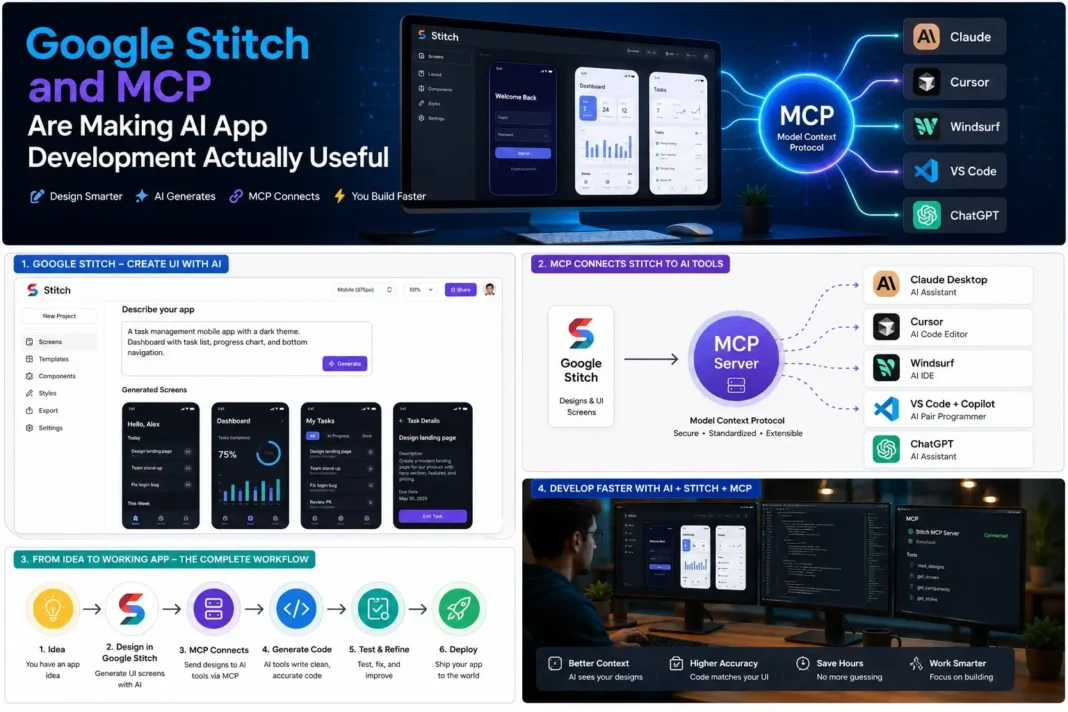
Google Stitch fixes that. You design the UI first — fast, with AI help — and then export those designs through the Stitch MCP server into your coding tool. Now when you ask Claude or Cursor to “build the login screen,” the AI has the actual design in front of it. No guessing.
The workflow looks like this:
Idea → Google Stitch (design) → Stitch MCP Server → AI Coding Tool → Code
Compare that to the old way:
Idea → Text description → AI guesses → You fix it → Repeat 6 times
The difference in output quality is significant. When an AI coding tool gets a concrete design spec, it generates code that matches. When it gets a text description, it generates code that kind of matches, and the gap between “kind of” and “exactly” costs hours.
Step-by-Step Tutorial: How to Use Google Stitch
Step 1: Access Google Stitch
Go to stitch.withgoogle.com. You need a Google account. No payment required.
Pick your AI mode:
- Standard (Gemini 2.5 Flash): Best for quick iterations and experimenting. 350 generations per month.
- Experimental (Gemini 2.5 Pro): Better quality, more detailed output. 50 generations per month.
Start with Standard unless you’re working on something you want to get right on the first try.
Step 2: Create a UI Using Prompts
Type your idea in the prompt box. Be specific — the more context you give, the better the result.
Weak prompt:
“A task management app”
Better prompt:
“A mobile task management app with a dark theme. Main screen shows a list of tasks grouped by today, this week, and later. Each task has a checkbox, title, priority badge (high/medium/low), and due date. Top right has a + button to add new tasks. Bottom nav has four icons: Home, Search, Calendar, and Profile.”
Tips:
- Describe the target user and their goal, then zoom in on the specific screen
- Mention color preferences, layout style (cards vs. list), and key interactions
- Upload a competitor screenshot or rough sketch if you have one — Stitch can work from images too
Step 3: Review Generated Screens
Stitch returns multiple layout variants. Take a minute to look at each one before picking.
You can refine through chat: “Make the task titles larger,” “Use teal as the accent color,” “Add a search bar at the top.” The tool tracks changes and lets you roll back to earlier versions.
Don’t try to get it perfect here. Good enough for handoff to a developer or coding tool is the goal.
Step 4: Export Designs
When you’re happy with a screen, export it:
- Figma: Click the Figma export button. Your design lands in a Figma file, ready for refinement.
- HTML/CSS code: Copy the generated frontend code directly into your project.
- MCP connection: If you’re using a coding tool that supports MCP, connect the Stitch MCP server to skip manual export entirely.
Step-by-Step Tutorial: Connect MCP to AI Tools
This is where the AI coding workflow gets interesting. Once you connect MCP to your tools, your AI assistant can read your Stitch designs, access your codebase, pull from GitHub, and write code that fits your actual project.
Claude Desktop
Claude Desktop has native MCP support. Setup:
- Open Claude Desktop → Settings → Developer
- Edit the
claude_desktop_config.jsonfile - Add the Stitch MCP server entry:
{
  "mcpServers": {
    "stitch": {
      "command": "npx",
      "args": ["-y", "@google/stitch-mcp"]
    }
  }
}
- Restart Claude Desktop
Now when you ask Claude to build a screen, it can pull the design straight from Stitch.
Cursor AI
Cursor supports MCP through its settings panel.
- Open Cursor → Settings → MCP
- Add a new MCP server with the Stitch server configuration
- Enable it for your project
Cursor’s strength is inline code editing. With Stitch MCP connected, you can say “implement the task list screen from my Stitch design” and Cursor generates the component code with the right structure and styling.
Windsurf
Windsurf (by Codeium) handles MCP through a similar config file. Drop the Stitch MCP server config into ~/.codeium/windsurf/mcp_config.json.
Windsurf’s Cascade feature works well with MCP because it can plan multi-step implementations. You can hand it a full Stitch design and say “build all five screens” and it’ll work through them in sequence.
VS Code + GitHub Copilot
GitHub Copilot added MCP support in 2025. In VS Code:
- Install the GitHub Copilot extension
- Open Settings → MCP Servers
- Add the Stitch server configuration
This combination is solid for teams already using GitHub workflows. Copilot can reference your Stitch designs while also accessing your repo history, pull requests, and existing components.
OpenAI ChatGPT
ChatGPT added MCP support in March 2025. To use it with Stitch:
- In ChatGPT, go to Settings → Connectors (or MCP Servers)
- Add the Stitch MCP server URL
- Authorize the connection
ChatGPT’s advantage here is its reasoning capability for complex layout decisions. It won’t write code inline the way Cursor does, but it’s useful for planning how to structure components before you move to a code editor.
Example Workflow: From Idea to Working App
Goal: Build a task management app for mobile.
Step 1 — Prompt in Google Stitch
“Mobile task manager. Dark theme. Main screen shows tasks grouped by Today, This Week, and Later. Each task has a checkbox, title, priority badge, and due date. + button top right. Bottom navigation: Home, Calendar, Search, Settings.”
Step 2 — Review and pick a layout
Stitch returns three or four variants. Pick the cleanest one. Refine the colors through chat if needed.
Step 3 — Export
Connect the Stitch MCP server to Cursor. No manual export needed — Cursor can now read the design directly.
Step 4 — Code generation in Cursor
Prompt in Cursor:
“Using the Stitch design, build the main task list screen as a React Native component. Use the task group structure from the design.”
Cursor generates the component with the correct layout, typography, and spacing pulled from the Stitch design.
Step 5 — Connect data
Add a GitHub MCP server and a database MCP server. Ask Claude or Cursor to wire up the task list to a simple Supabase backend.
Step 6 — Deploy
Push to GitHub, deploy via Vercel or Expo. Total time from idea to working prototype: a few hours instead of a few days.
Benefits of Using Google Stitch With MCP
| Benefit | What it means in practice |
|---|---|
| Faster prototyping | Go from idea to testable UI in minutes, not days |
| Better AI code output | AI works from real designs, not text descriptions |
| Less back-and-forth | Fewer revision cycles when the starting point is accurate |
| Easier collaboration | Designers and developers share the same design source |
| Works with tools you already use | Cursor, VS Code, Claude, ChatGPT all support MCP |
The biggest one is the second. AI code quality jumps noticeably when the model has a concrete design spec to work from. It’s the difference between asking someone to “write a report” and handing them an outline.
Common Mistakes to Avoid
1. Vague prompts in Stitch “A clean app” tells Stitch nothing useful. Describe the specific screen, the user’s goal on that screen, and the visual style you want.
2. Trying to get perfect designs in Stitch Stitch is for fast iteration, not pixel-perfect production designs. Get something good enough, then refine in Figma or directly in code.
3. Connecting MCP without testing it Before trusting an MCP connection in production, test it with a simple command. Ask your AI tool to list what it can see through the server. If it returns garbage, the config is wrong.
4. Using Experimental mode for every generation You only get 50 Experimental generations per month. Use Standard for drafts and exploration. Save Experimental for final versions.
5. Skipping the export step and describing the design in text anyway The whole point of connecting Stitch to MCP is that the AI reads the actual design. If you describe the design in your prompt instead of using the MCP connection, you’ve lost the main advantage.
6. Expecting MCP to be plug-and-play on every tool MCP support varies. Some tools need a JSON config file. Some have a UI. Some need an extension. Check the docs for your specific tool before assuming it works out of the box.
The Future of AI App Development
The shift happening right now is from AI-as-autocomplete to AI-as-collaborator. Tools like Google Stitch and MCP are early infrastructure for that shift.
A few things to watch:
Agentic workflows — Instead of prompting one tool at a time, AI agents will run multi-step workflows autonomously. Design in Stitch, generate code in Cursor, run tests, push to GitHub — without a human triggering each step. Gartner predicts 40% of enterprise applications will include task-specific AI agents by end of 2026.
MCP as standard infrastructure — MCP was donated to the Linux Foundation in December 2025. That’s the same path Kubernetes took. It’s becoming the infrastructure layer that everything else builds on, and the ecosystem is growing fast: over 500 public MCP servers already exist as of early 2026.
Google’s full stack — Google has AI Studio, Stitch, Firebase, and Gemini. MCP connects them. The full-stack vision is that you design in Stitch, store in Firebase, deploy with Cloud Run, and have Gemini handle logic — all through MCP.
Design-to-code getting tighter — The gap between what you design and what gets built is shrinking. Stitch is one piece of that. Figma has its own AI features. The direction is clear: in two or three years, “design a screen” and “build a screen” will be close to the same action.
Conclusion
The reason AI app development has felt clunky is that AI tools were building from incomplete information. No design, no context, no connection to the tools you actually use.
Google Stitch fixes the design problem. MCP fixes the context problem. Use this Google Stitch MCP tutorial as a starting point: design a screen in Stitch, connect it to your coding tool through MCP, and see how differently the AI performs when it has something real to work from.
This combination is most useful for developers who want to prototype faster, designers who want to hand off cleaner specs, and product teams who want to get to a working demo without a full engineering sprint. If that’s you, there’s no good reason to wait.
FAQ
1. What is Google Stitch? Google Stitch is a free AI-powered UI design tool from Google Labs. You describe an app interface in plain text or upload a sketch, and Stitch generates a high-fidelity layout with frontend code. It launched at Google I/O 2025 and runs on Gemini 2.5.
2. What is MCP? MCP (Model Context Protocol) is an open standard that lets AI tools connect to external systems — files, databases, APIs, design tools — through a single interface. Anthropic released it in November 2024; OpenAI, Google, and Microsoft all adopted it by 2025.
3. Is Google Stitch free? Yes. Stitch is free with no subscription. You get 350 generations per month in Standard mode (Gemini 2.5 Flash) and 50 per month in Experimental mode (Gemini 2.5 Pro).
4. How does MCP work? MCP uses a client-server model. Your AI tool (Claude, Cursor, VS Code) acts as the host. It connects to MCP servers that expose capabilities like reading files, querying databases, or pulling designs from Stitch. The AI calls these servers as needed, gets structured data back, and uses it in its response.
5. Can Google Stitch generate code? Yes. Stitch outputs HTML and CSS code for every UI it generates. You can export it directly or connect Stitch to a coding tool through the Stitch MCP server so the AI can read and implement your designs.
6. Which AI tools support MCP? Claude Desktop, Cursor, Windsurf, VS Code with GitHub Copilot, and ChatGPT all support MCP. The ecosystem also includes Claude Code (Anthropic’s terminal-based coding agent) and many other tools.
7. How do I connect Claude to MCP? In Claude Desktop, go to Settings → Developer and edit claude_desktop_config.json. Add an entry for each MCP server you want to use. Restart the app. Claude will then have access to whatever those servers expose.
8. Can beginners use Google Stitch? Yes. You don’t need design skills or coding experience. If you can describe what you want in a sentence, Stitch can generate a starting point. The learning curve is mostly in writing better prompts.
9. Is MCP better than direct API integrations? For most use cases, yes. Custom API integrations work, but each one is built and maintained separately. MCP gives you a standard interface: build one MCP server and every compatible AI tool can use it. It also handles authentication, rate limiting, and session management at the server level.
10. What is the future of AI app development? The direction is toward agentic workflows where AI handles multi-step tasks autonomously, and tighter design-to-code pipelines where design and implementation happen in one flow. MCP is the protocol that connects these pieces. It’s already standard infrastructure and will only become more central as AI agents take on more of the development process.