Google has been talking about Gemini for over two years now, but Android 17 is the first time the company has truly stitched the model into the operating system at the root level. Gemini Intelligence is the name Google has settled on for this deeper integration. It’s not a new app, not a new icon, and not just a renamed Assistant. It’s the layer that sits between you, your apps, and your data, and it shows up everywhere from the lock screen to the keyboard to settings.
If you’ve been using Google Assistant for years, the shift can feel confusing. The voice prompt still works. The search bar still searches. So what’s actually different? The short answer is that Assistant was a command-and-response tool. Gemini Intelligence is closer to an operating system co-pilot. It understands context, holds memory across sessions, takes multi-step actions, and reasons about what you’re looking at on screen.
Here’s a full breakdown of what Gemini Intelligence on Android 17 actually does, how it compares to the old Assistant, the privacy trade-offs you need to know about, and which devices get the full feature set in 2026.
What Gemini Intelligence Actually Is
Gemini Intelligence is Google’s name for the system-level AI that runs inside Android 17. It uses a mix of on-device models, like the Gemini Nano variants, and cloud models such as Gemini 3.5 Flash for heavier workloads. The on-device part is the bigger story here, because it means a lot of what you ask Gemini to do never leaves your phone.
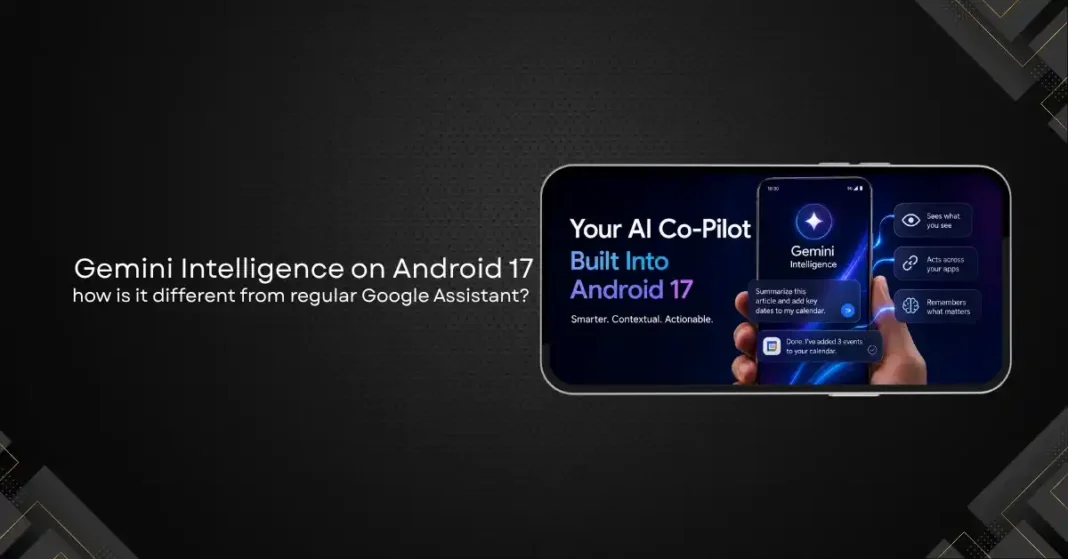
Three things separate it from the old Assistant. First, it has persistent memory. If you mention next week that you’re flying to Bangalore on the 12th, it will remember when you ask about packing weather the day before. Second, it reads the screen. You can long-press the power button on a webpage and ask ‘summarise this and add the key dates to my calendar’, and it will. Third, it chains actions. A single voice prompt can pull a flight number from your inbox, check the airline’s site, set a reminder, and message your spouse.
Google calls this ‘agentic’ behaviour. In practice it just means Gemini can plan and execute small task sequences instead of treating every prompt like a fresh one-shot query.
The Core Differences from Google Assistant
The old Google Assistant was built around intents. You’d say ‘set a timer for ten minutes’ and it would match your voice to a known intent, fill in the slot (ten minutes), and execute. If you said anything outside that pattern, you got the dreaded ‘I found these results on the web’ response.
Gemini Intelligence is built on a large language model. There is no fixed intent list. It works out what you mean from the words, the context, and what you’ve said before. You can ask it to ‘find the email where my landlord sent the rental agreement and tell me when the lease ends’, and it will read your Gmail thread and answer. Assistant simply could not do that.
The other big difference is multimodal input. Gemini Intelligence accepts voice, text, images, screen contents, and live camera feed at the same time. Point your camera at a label on a wine bottle, ask ‘is this similar to what we had at Maya’s place last month’, and it can look up that conversation, compare grape varieties, and answer. That kind of layered context was never part of Assistant.
Finally, the output is different too. Assistant gave you cards. Gemini Intelligence gives you conversational replies, follow-up suggestions, and inline action buttons. It feels less like searching and more like asking a knowledgeable friend who happens to have admin access to your phone.
Key Features Worth Knowing About
Live Screen Awareness lets you ask Gemini about anything visible on your display. Watching a YouTube video about a recipe? Ask it to save the ingredient list to Keep. Reading a PDF? Ask for a summary and the three key numbers. This works inside any app, including ones Google didn’t build.
Cross-App Actions is where the agentic behaviour shows up most. You can tell Gemini ‘book a ride to the airport in time for my 7am flight on Saturday’, and it will check the flight in your inbox, work out drive time, open your ride app of choice, and pre-fill the details. You confirm. It books.
Memory and Personal Context is opt-in. When you switch it on, Gemini remembers facts you tell it, things you ask about often, and preferences you’ve set. It will use those across sessions, so you don’t have to repeat yourself. You can view, edit, and delete memories from Settings.
Inline AI in Keyboard, Messages, and Apps shows up as a small Gemini icon in Gboard and across messaging apps. Tap it to rewrite a message, translate, summarise an email thread, or generate a reply suggestion. The same icon shows up in Google Photos for AI edits, in the Phone app for call transcription, and in Chrome for tab summaries.
Project Astra style visual reasoning is the most ambitious piece. With your camera or screen feed running, you can ask Gemini to identify objects, read text aloud, describe scenes for accessibility, or troubleshoot a hardware problem by pointing at the device. This was demoed at I/O 2024 and is now a real feature in Android 17.
On-Device vs Cloud Processing
One of the more interesting choices Google made with Gemini Intelligence is splitting the workload between on-device and cloud models. Quick tasks, like rewording a message or summarising a notification, run on the Gemini Nano model that sits on your phone. These never touch Google’s servers.
Heavier tasks, like reasoning across long documents, generating images, or running multi-step agentic flows, route to Gemini 3.5 Flash in the cloud. You can usually tell which is which by the response speed and by a small indicator that shows up in the Gemini overlay.
If you have a Pixel 10 Pro, Galaxy S26, or another flagship with the right NPU, more of the work happens locally. On older mid-range phones, more of it routes to the cloud. There’s no functional difference for most users, but if you care about privacy you can set Gemini to prefer on-device processing in Settings and accept that some features will be slower or unavailable.
Privacy and Data Handling
This is the part most users skip and shouldn’t. Gemini Intelligence has access to a lot. Your inbox, your screen, your camera, your location, your calendar, and your messages, depending on which permissions you grant. Google says it processes sensitive context on-device wherever possible and that cloud queries are not used to train the public Gemini model by default.
You can audit and delete your Gemini activity from myactivity.google.com, and you can switch off cloud processing entirely if you accept the loss of the heavier features. You can also turn off memory, turn off screen awareness per-app, and prevent Gemini from reading specific apps like your banking or health apps.
Independent researchers have flagged a few concerns. The first is that ‘on-device’ can be a fuzzy phrase, since some metadata about your queries does still reach Google for telemetry and crash reporting. The second is that the agentic action feature requires you to grant Gemini the ability to act on your behalf across apps, which is a wide permission. The third is that voice recordings, when you use them, are stored briefly for review unless you opt out.
None of this is unique to Google, but it does mean Gemini Intelligence asks for more trust than the old Assistant ever did.
Compatible Devices and Rollout in 2026
Android 17 with full Gemini Intelligence shipped on Pixel 10 series devices first, then expanded to Samsung Galaxy S26 family and other 2026 flagships in stages. Older Pixels going back to the Pixel 8 get most features, with a few of the heavier visual reasoning capabilities locked to newer hardware that has enough NPU performance.
Mid-range phones running Android 17 generally get cloud-based Gemini Intelligence with limited on-device features. Devices below 8GB of RAM may not get the screen awareness feature at launch.
On Samsung phones, Gemini Intelligence sits alongside Samsung’s own One UI AI tools, which can be confusing. In most cases, Galaxy AI handles photo and visual edits while Gemini Intelligence handles language, search, and cross-app actions. The two are meant to be complementary, but there is overlap.
If your phone is on Android 16 or older and your manufacturer has stopped pushing system updates, you will not get Gemini Intelligence at all. The standalone Gemini app is still available on those phones, but the system-level integration is what makes the new experience feel different.
Should You Switch on Every Feature?
Probably not on day one. Memory is genuinely useful but it works better after a few weeks of context, so switch it on early. Screen awareness is the feature most people end up using daily, especially for summarising long articles, reading PDFs, and getting information out of poorly designed apps. Camera-based visual reasoning is fun for a week then mostly forgotten unless you have a specific use case like translation or accessibility.
Agentic actions are powerful but worth limiting at first. Start by allowing Gemini to act inside Google’s own apps, like Calendar, Keep, and Messages. Add third-party apps only after you’ve seen how reliably Gemini handles the simpler tasks. The model still makes mistakes, especially when chaining actions across apps it hasn’t been trained for.
If you’re upgrading from Assistant and you don’t care about the new stuff, you can use Gemini in a much simpler way. Most of the voice command patterns you already know still work. The new features are opt-in, layered on top of the basic experience you already had.
Frequently Asked Questions
Is Gemini Intelligence the same as the Gemini app?
No. The Gemini app is a chatbot interface where you type or speak to Gemini directly. Gemini Intelligence is the deeper system layer in Android 17 that powers AI features across all your apps, the lock screen, keyboard, and notifications. You can have both on the same phone.
Will Gemini Intelligence work on my iPhone?
No. Gemini Intelligence is an Android 17 system feature and won’t run on iOS. Apple uses its own Apple Intelligence layer instead, and rumours suggest Apple is partnering with Gemini for some Siri tasks, but that’s a separate integration.
Can I switch back to Google Assistant if I don’t like Gemini?
On most Android 17 phones, the original Assistant has been retired and replaced by Gemini Intelligence. You can disable Gemini features and stick to basic voice commands, but you cannot reinstall the legacy Assistant as the default.
Does Gemini Intelligence cost extra?
The basic features are free. Some advanced features such as longer memory windows, video generation, and the most capable cloud models are part of Google AI Premium, which is part of the Google One subscription at higher tiers.
Is my data used to train Gemini?
Google says that by default, paid users’ data is not used for training. Free users can opt out of having their interactions used to improve Gemini. Check your settings under Activity Controls to see what’s enabled on your account.
How is Gemini Intelligence different from Apple Intelligence?
Both are system-level AI layers, but Apple Intelligence runs more processing on-device and uses smaller models with deeper Apple ecosystem integration. Gemini Intelligence has stronger cloud capabilities, better long-context reasoning, and more agentic actions, but it also asks for broader permissions.
Final Thoughts
Gemini Intelligence is the biggest change to how Android works since the move to the Material design language a decade ago. It’s not just a renamed Assistant. It’s a different way of using your phone, one where you ask for outcomes instead of running commands. The trade-offs are real, especially around privacy and trust, but for most users the upside is significant. Once you’ve asked Gemini to read a screen, save a few details, and act on them in one go, the old way of switching between four apps to do the same thing feels slow.
If you’re on a newer Android phone, give it a couple of weeks of real use before you decide. The features that look gimmicky in demos often become the ones you rely on, and the ones that look impressive in keynotes are often the first to gather dust.