Introduction
Picture this. You’re a journalist chasing a story, and you need to know if “wildfire smoke” is trending alongside “air quality index” or “N95 masks.” The old way meant typing in one term, waiting, typing in another, comparing tabs, and hoping you didn’t miss the term that actually mattered.
That manual grind is exactly what Google set out to fix. In January 2026, Google rolled out a Gemini AI-powered redesign of the Trends Explore page — the tool millions of journalists, marketers, and researchers use to track what the world is searching for.
This isn’t a cosmetic refresh. It changes how people find related search terms, how many trends they can compare at once, and how much manual guesswork is left in the process. If you use Google Trends for content planning, news monitoring, or market research, this update touches your workflow directly.
In this article, you’ll learn exactly what changed, how the new Gemini features work, how to use them well, and what mistakes to avoid as you adjust your workflow.
Key Takeaways
- Google announced the Gemini-powered Trends Explore redesign on January 14, 2026.
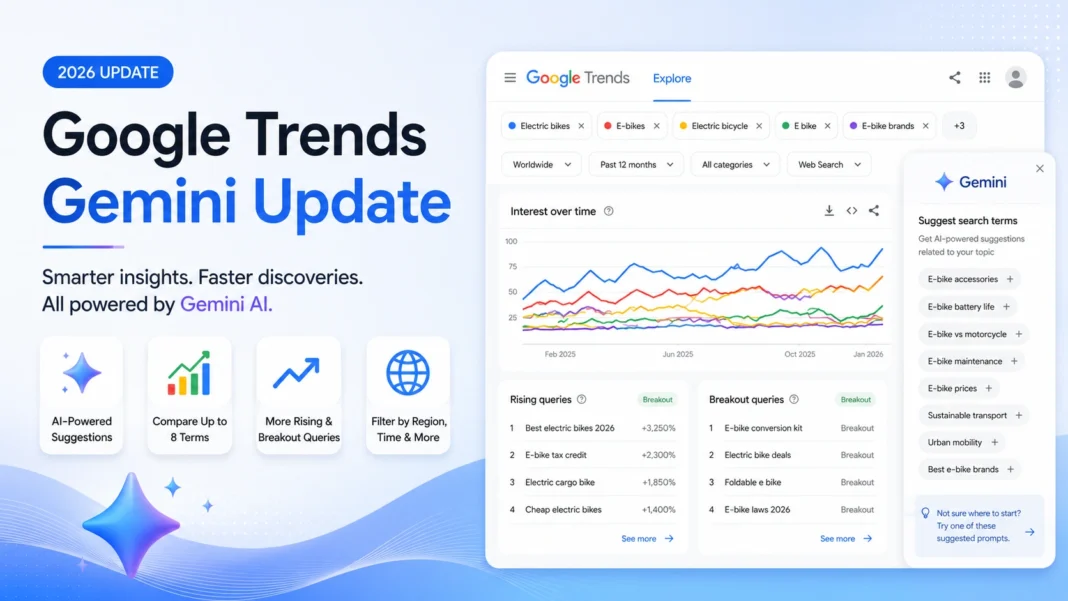
- A new Gemini-powered side panel automatically suggests up to 8 related search terms for any topic you’re exploring.
- The page now shows doubled Rising and Breakout queries on each timeline.
- Each search term gets its own icon and color for easier reading on the graph.
- The rollout started on desktop only, with mobile access expected later.
- The update is free and doesn’t require a separate Gemini subscription.
- Google is separately piloting a Trends API alpha for developers who want programmatic access to trends data — a distinct project from the Explore page redesign.
What Exactly Changed on Google Trends?
A Gemini-Powered Side Panel
The centerpiece of the update is a new side panel on the Trends Explore page. Instead of typing in one search term at a time, you now get a “Suggest search terms” option. Type in a keyword — or even a natural-language sentence — and Gemini analyzes it, then automatically populates the graph with related terms.
Google’s own example: search for trending dog breeds, and Gemini will automatically pull in terms like “golden retriever” and “beagle,” then suggest related angles such as “hypoallergenic dog breeds” for deeper research.
Why this matters: Finding the right comparison terms used to be trial and error. Now the AI does the first pass, and you refine from there.
Compare Up to 8 Terms at Once
Previously, comparing many search terms meant a cluttered graph that was hard to read. The new interface supports up to eight terms simultaneously, each with its own color and icon, so you can actually tell which line is which at a glance.
Doubled Rising and Breakout Queries
Every trend timeline now shows twice as many “Rising” and “Breakout” queries as before. These are the terms gaining momentum fastest — often the earliest signal of an emerging story or shift in consumer interest. More visibility here means less chance of missing a trend before it becomes obvious to everyone else.
Suggested Gemini Prompts
Alongside the graph, the page now surfaces suggested prompts — pre-written questions designed to nudge you toward a deeper angle you might not have thought to search for. It’s less “here’s your data” and more “here’s your data, and here’s what to ask next.”
A Modern, Cleaner Interface
Google also gave the page a visual refresh: dedicated colors and icons per term, and hover-based filters for adjusting by country, time period, or region without leaving the page.
Step-by-Step: How to Use the New Gemini-Powered Explore Page
Requirements: A desktop or laptop browser (the initial rollout is desktop-only). No Google account is required for basic use, though signing in lets you save comparisons.
- Go to the Explore page. Visit trends.google.com/explore.
- Enter your topic. Type a keyword or a natural-language phrase — for example, “electric bikes” or “what are people searching about electric bikes this year.”
- Click “Suggest search terms.” This triggers the Gemini side panel to generate up to eight related terms.
- Review the auto-populated graph. Each term gets a distinct color and icon. Hover over any line to isolate it.
- Check the Rising and Breakout sections. Scroll down to see the expanded list of fast-growing related queries.
- Try a suggested prompt. Click one of the Gemini-suggested prompts to pivot into a related angle you hadn’t considered.
- Filter as needed. Adjust by region, time range, or category using the filter controls.
- Manually remove or swap terms. If Gemini’s suggestions aren’t quite right, you can still edit the term list by hand — the AI assist doesn’t remove manual control.
Best practice: Treat the AI-suggested terms as a starting point, not a final answer. Cross-check anything you plan to publish or act on, especially for niche or region-specific topics where AI suggestions may be less precise.
Troubleshooting tip: If you don’t see the new side panel, you may still be on the classic interface during the gradual rollout, or you may be accessing Trends from a mobile device, which wasn’t part of the initial launch.
Classic Trends vs. Gemini-Powered Trends
| Feature | Classic Google Trends | Gemini-Powered Trends Explore |
|---|---|---|
| Related term discovery | Manual, one at a time | Automatic, up to 8 terms at once |
| Rising/Breakout queries shown | Standard list | Doubled |
| Visual distinction between terms | Limited | Dedicated icon + color per term |
| Research suggestions | None | AI-suggested prompts for deeper angles |
| Natural language search input | Not supported | Supported |
| Platform availability | Desktop and mobile | Desktop first, mobile rollout later |
| Cost | Free | Free |
Who Benefits Most From This Update
Journalists get a faster way to spot related angles on a breaking story without manually brainstorming search terms.
Content marketers and SEOs can identify content gaps and rising queries faster, which helps with keyword planning and content calendars.
Market researchers can compare more variables at once — useful for spotting regional or seasonal shifts in consumer interest.
Who might not need it yet: If your work depends on mobile-first workflows, you’ll need to wait for the mobile rollout. And if you need raw, programmatic access to trends data rather than a visual interface, the separate Trends API alpha (still limited access) is the more relevant tool to watch.
Common Mistakes to Avoid
- Treating AI-suggested terms as complete. Gemini’s suggestions are a starting point. Always sanity-check them against your own domain knowledge.
- Ignoring the manual override. You can still add or remove terms by hand — don’t assume the AI panel is the only way to build a comparison.
- Comparing too many unrelated terms. Just because you can compare 8 terms doesn’t mean you should. Overcrowded graphs are still hard to read, even with color coding.
- Forgetting regional and time filters. A trend that looks flat globally might be spiking in one country or region. Filter before you conclude a topic isn’t trending.
- Assuming mobile parity. If you’re checking Trends from your phone, you may still be looking at the older interface — don’t assume you’re missing a bug when you’re actually just on a different rollout stage.
Expert Tips
- Use natural-language input for exploratory research. Instead of guessing single keywords, describe what you’re trying to understand — Gemini tends to surface more useful related terms from a full sentence than from a single word.
- Pair Rising/Breakout queries with your content calendar. Since the list is now doubled, it’s worth checking this section weekly for early-stage topics before they peak.
- Don’t skip the suggested prompts. They’re designed to surface angles a human researcher might not think to search for — useful for competitive or trend-spotting work.
- Watch the Trends API alpha separately. If your team needs to pull trends data into dashboards or internal tools, keep an eye on Google’s developer channels for expanded API access, since this is a separate rollout from the Explore page redesign.
What’s Next for Google Trends and AI
Google has framed this as part of a broader push to embed Gemini across its core products — Search, Gmail, Docs, and now Trends. A few things worth watching:
- Mobile rollout. The Gemini-powered Explore page launched on desktop first; Google hasn’t confirmed a firm mobile timeline.
- Broader API access. The Trends API alpha, if it moves beyond limited access, could open the door for more third-party tools and dashboards built directly on Google’s trends data.
- Deeper AI reasoning. Given Google’s parallel investment in more advanced Gemini reasoning modes for other products, it’s plausible future Trends updates lean further into automated analysis rather than just term suggestion.
None of this is confirmed roadmap — it’s a reasonable read of where Google’s overall AI integration strategy is headed.
Conclusion
The Gemini update to Google Trends’ Explore page isn’t a total reinvention of the tool — it’s still the same underlying search-interest data Google has offered for years. What’s changed is the friction around using it. Related terms are suggested automatically, comparisons are easier to read, and the tool nudges you toward angles you might not have searched for on your own.
For journalists, marketers, and researchers who rely on Trends regularly, that’s a meaningful time-save, even if it’s not a fundamentally new capability. The best approach going forward: let Gemini do the first pass, but keep your own judgment in the loop before you publish or act on anything the AI suggests.
FAQ
Q: When did Google roll out the Gemini update to Google Trends? A: Google announced it on January 14, 2026, and it began rolling out on desktop that same week.
Q: Is the Gemini-powered Google Trends free to use? A: Yes. It’s included in the standard, free Google Trends platform. No separate Gemini subscription is required.
Q: Do I need a Google account to use the new Explore page? A: No. Basic use doesn’t require sign-in, though a Google account lets you save searches and comparisons.
Q: How many search terms can I compare now? A: Up to eight terms at once, each with a distinct color and icon.
Q: What are “Rising” and “Breakout” queries? A: They’re related searches gaining momentum fastest. Google doubled how many of these appear on each timeline in this update.
Q: Can I still manually enter search terms instead of using AI suggestions? A: Yes. The Gemini side panel adds automatic suggestions, but manual entry and editing are still fully supported.
Q: Is the new Explore page available on mobile? A: Not at initial launch. The update rolled out to desktop first; Google hasn’t given a confirmed mobile timeline.
Q: What is the Google Trends API, and is it the same as this update? A: No — it’s a separate, ongoing alpha rollout that gives developers programmatic access to trends data. It’s a different initiative from the Explore page’s Gemini redesign.
Q: Does the Gemini integration replace the standalone Gemini AI chatbot? A: No. The AI analysis happens within the Trends interface itself; it doesn’t require using the separate Gemini app.
Q: Will the classic (non-Gemini) Trends interface still be available? A: During the rollout period, Google has allowed toggling between interfaces in some regions, but this is expected to be temporary as the new interface becomes standard.
Q: How does this affect SEO and content strategy? A: It speeds up keyword and topic research by surfacing related and rising queries faster, which can help identify content gaps earlier.
Q: Who announced the update at Google? A: Nir Kalush, Director of Product Management at Google, announced it via Google’s official blog.